Getting the update: close every open Revit window, then start Revit again. AECOtools updates itself as Revit starts — there's nothing to download or install.
Setting up a new computer, or new to AECOtools? Download the installer from the AECOtools portal.
Your sheets in AECOtwin
Publish sheets from Revit and your whole team can open them in AECOtwin — beside the 3D model, pinned with issues, and compared version to version.

Publish sheets from Revit
NewClick Sheets in the AECOtrack pane, or tick Publish sheets to AECOtwin in AECOprint to do it in the same print run. Every publish is a new version — v1, v2, v3 — shown alongside the sheet's Revit revision, like REV 01 · v3. Unchanged sheets are skipped, so republishing a set is quick.

View sheets in AECOtwin
New- Every published sheet is listed in the Views tab and opens in a sharp, zoomable viewer.
- Search the text on a sheet, and step through the matches.
- The 3D model and your open sheets sit in tabs that keep their place. Drag to reorder; right-click a tab to split a sheet beside the 3D model.
- Sheets appear in the 3D model too — plans laid flat at their level, sections and elevations standing upright where they cut.
- No Revit to hand? Upload PDF drawings straight from the web with + PDF.

Compare versions
NewOverlay any two versions of a sheet and see what changed: unchanged work in grey, the old version in red, the new one in blue. A slider blends between the two.
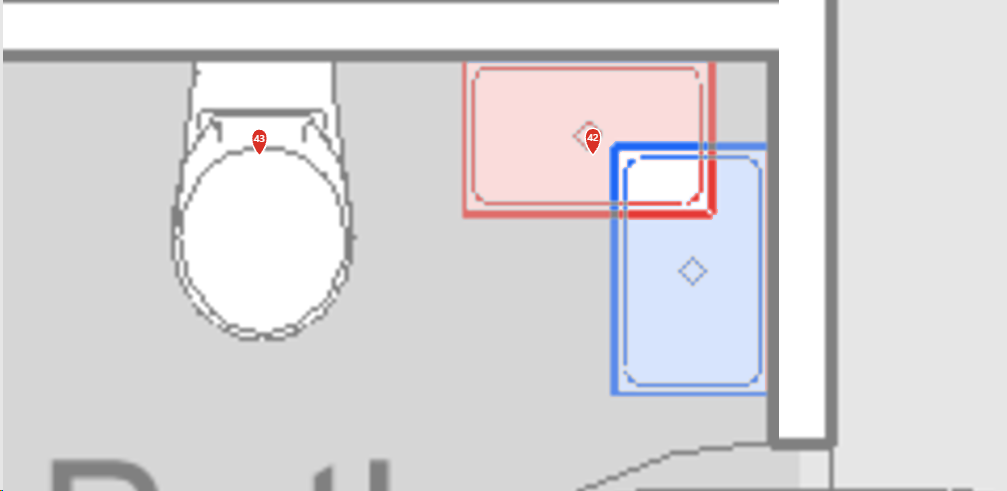
Pick elements on a sheet
BetaClick the linework on a sheet to select the Revit element behind it, jump to it in 3D, and carry it into a new issue.

Issue pins and tracking
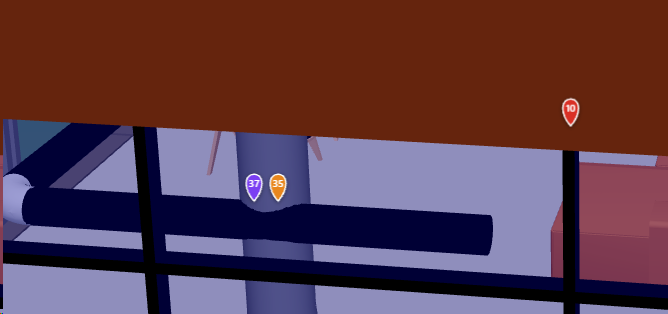
New- Raise an issue on a sheet and it gets a numbered pin right where you placed it.
- Pins show on the sheets and on the 3D model — turn them on with Navigate › Issues.
- Pins are coloured by status to match AECOtrack. Right-click the Issues toggle to colour them by priority or discipline instead. Closed issues drop their pin.
- Pins follow their view. An issue is tied to the view it was raised in, not a spot on the paper — so if that view moves to another sheet, the pin moves with it, in AECOtwin and in Revit.
- Open a sheet issue from Revit and Home takes you to the published sheet.
New tools

Planting
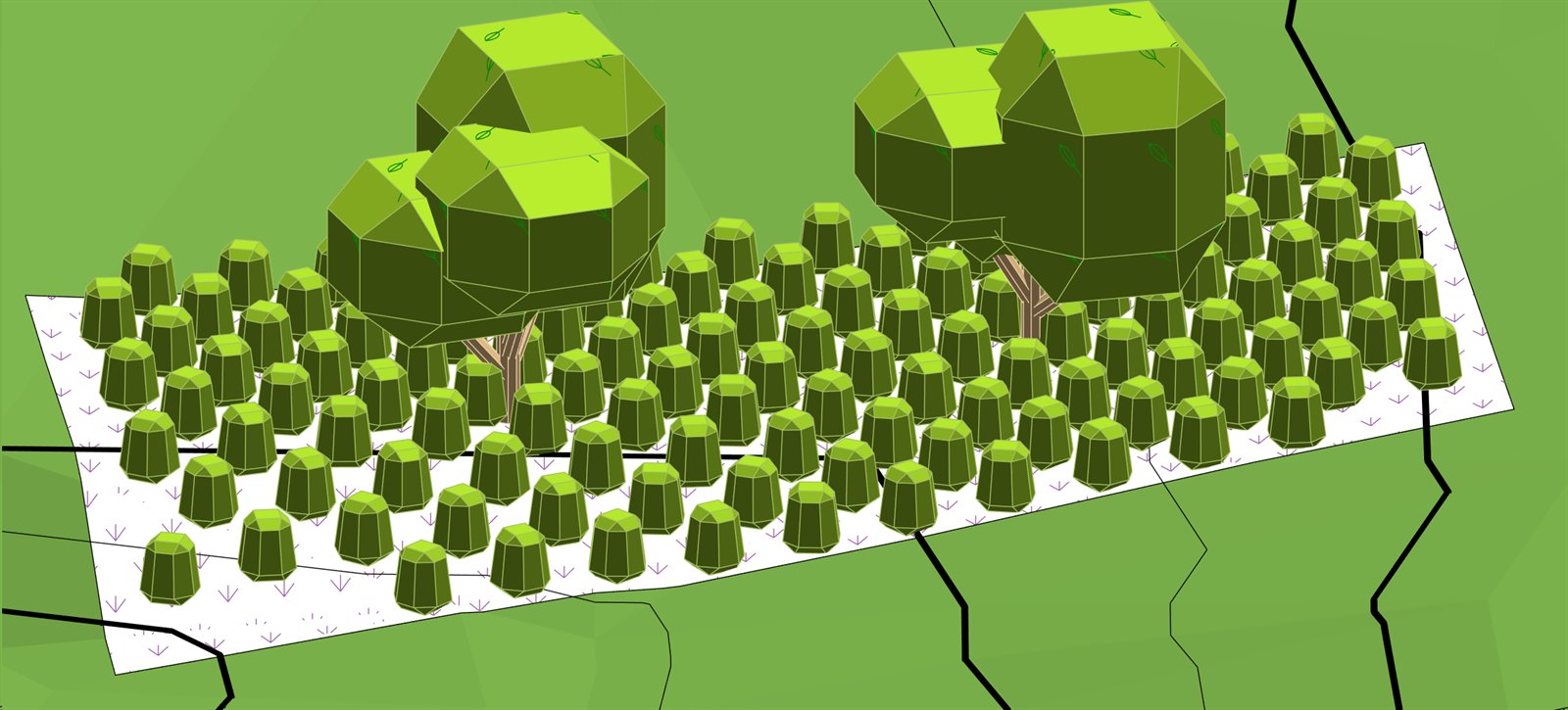
BetaPlan planting beds without the spreadsheet juggling. Build a mix — species, pot sizes and quantities — then select floors, toposolids or subdivisions and apply it.
- Each bed takes on the mix's type, colour and hatch.
- Plant counts, labels and schedules keep themselves up to date as you edit the model. Shift+click the Planting button to turn automatic updates on or off — a green dot shows when they're on.
- Every species gets a plant code automatically, so your schedule reads like a proper plant list.
- The Planting window floats, so it can stay open while you work.

Landscape Converter
BetaChange hard landscape between floors, toposolids and toposolid subdivisions without redrawing it. The outline, level and height offset carry across — and the surface shape too, where the new element supports it. A planted bed keeps its planting.

Type Legend
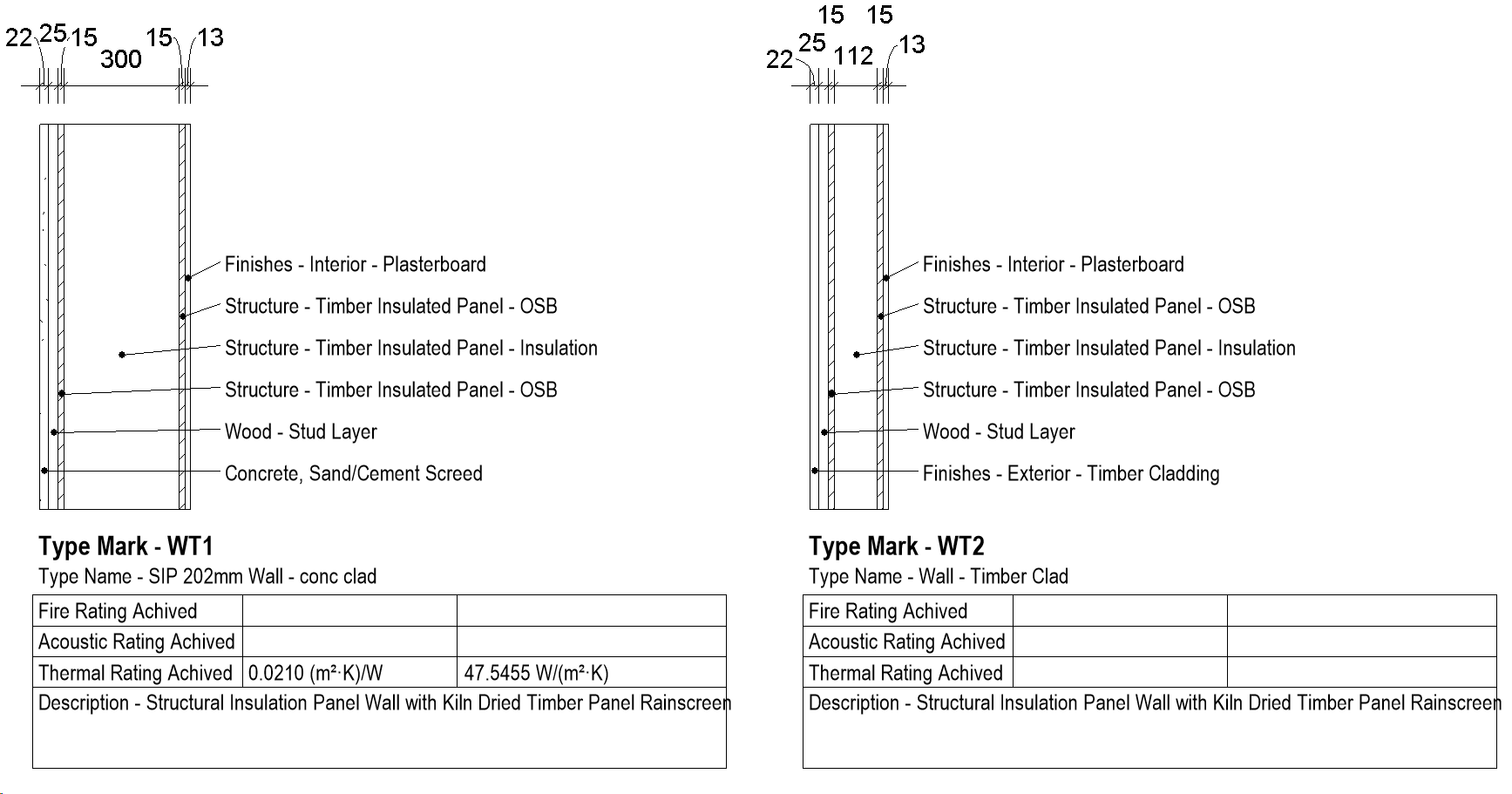
BetaBuilds a legend of your wall, floor, roof, ceiling, door or window types: one sample per type, with its type tag, a dimension to every layer and a tag on each material.
- Walls are shown in plan; floors, roofs and ceilings in section; doors and windows in elevation.
- Each legend gets its own cropped views, ready to drop on a sheet.
- Samples live in a legend design option, clear of the model, so they never appear in your real views.
- Refresh Legend keeps it current as types come into and out of use.

Hub Publish
NewPublish every workshared cloud model in a project in one go — handy after an ACC cloud upgrade.

Edit Report
BetaSee who created, changed or deleted what, across the published versions of a cloud model — exported to Excel.

Hub Report
BetaEvery project in your hub — name, platform, Revit version and status — in one Excel list.

Hub Backup
BetaMirror ACC project files to a local or network backup folder. Re-runs only download files that have changed.

Link Check
BetaFind missing or deleted link targets, and models published against out-of-date links, across your projects.

Permissions
BetaAudit who can access what across ACC projects — members, roles, admins and folder permissions — as an Excel workbook plus an interactive network diagram.
Improvements
AECOprint
PDFs that navigate like a Bluebeam set. Sheet references printed on your drawings — "A-501" on a callout — become clickable links to that sheet, and each PDF gets bookmarks and page labels by sheet number. Links work within a combined PDF and between separate files.
- Publish sheets to AECOtwin in the same print run (see above).
- Select a range of sheets with Shift and Ctrl when publishing.

Elevate Elements
- Places the elevations straight onto sheets, with room left for each view title.
- Remembers your settings for each category.
- Now dimensions and tags curtain walls.
- Small dimension values only shift when their text actually clashes with a neighbour.

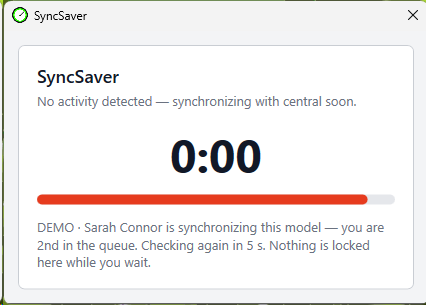
SyncSaver
- Fixed: syncing a cloud model no longer fails with an "internal error".
- When several people are working in the same model, SyncSaver now queues syncs with central instead of everyone syncing at once. You're given a place in the queue and notified when it's your turn, so you can keep working while you wait.

Duct Pressure
- A new results window, with the critical path listed section by section beside Revit's own figures.
- Calculated the way Revit does it — using the model's friction equation and each duct's own roughness, with branched ducts split into the stretches the path actually runs along.
- Push Parameters now sets each fitting's Revit Loss Method from the results.

Batch Tasks
Fixed tasks that wrongly appeared unassignable, IFC exports now default to IFC4, and the task list is easier to read.

Para Control
Select several parameters and edit them all at once.
AECOtrack
- The issue card is reorganised to fit a 1080p screen — assignee, start and due dates sit beside the title, and editing an issue shows the same row.
- Markup text sits in a box you can resize, and wraps.
- The pop-out issue window in Revit now fits the screen Revit is on.

Live View
Smoother to use: the viewer always fills its window, WASD movement no longer sticks, and moved elements no longer reappear in their old spot.
Fixes and reliability
- No more being locked out on a new computer. If you've reached your device limit, signing in on another computer now signs out the one you've used least recently — instead of stopping you.
- More dependable with several Revit sessions open at once.
- For IT teams: every AECOtools file is digitally signed by AECOtech Pty Ltd, so application-control tools such as ThreatLocker can approve our publisher once rather than each release.
About the Beta badge

Some tools now have an orange corner on their ribbon icon, and their tooltip starts with "BETA". These tools are ready to use and open to everyone — they're just still being refined, so the occasional rough edge is expected.
Document Audit and Ceiling Services now carry the badge too.
Found something odd? Use AECOtools › Support › Report Issue. It sends us the details we need to fix it — your models aren't included.
Getting help with AECOtools
- In Revit: open any tool and click ? for its complete guide.
- Something not working? Use AECOtools ▸ Support ▸ Report Issue — it sends us what we need to help.
- Licences and seats: manage your licence or start a 30-day free trial.
- Everything else: get in touch.